
Getting started
Three steps before your config.yml can point at Turbo: create an organization, connect your Git provider, create a site.
Create an organization
Sign up with an email and password, or accept an invitation someone sent you. Every organization starts on the Free plan — one site, one seat, no payment step.
An organization is the billing and ownership unit. It owns sites and holds the seats people occupy. You can belong to several, and create more at any time from your profile.
Sign-in is email and password today. Other providers are planned.
If you accepted an invitation, you are already in someone else’s organization and can skip to whatever they gave you access to — see your profile.
Connect your Git provider
Do this before creating a site. Site creation is refused until the organization has a connection for the provider you pick, because the proxy uses it to reach your repository. It is one-time and per organization, not per site.
Go to Git connection in the organization nav.
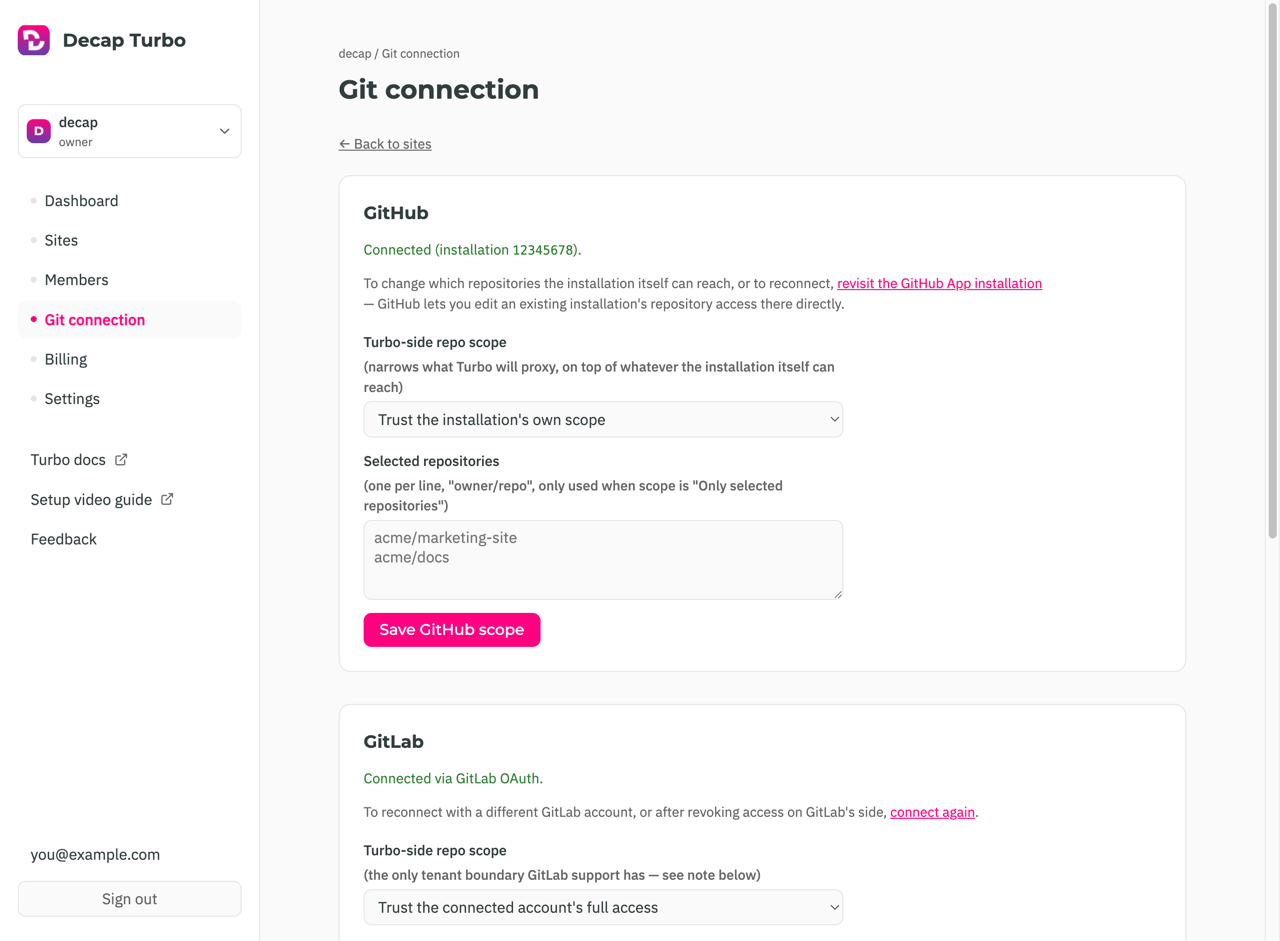
GitHub — install the Turbo GitHub App on the GitHub account or organization that owns your repositories, choosing all repositories or a subset. Return to this page afterwards to change that selection.
GitLab — authorize Turbo against your GitLab account over OAuth.
GitLab.com gates group and project access tokens behind Premium, so Turbo authenticates as the GitLab user who authorizes the connection. That token can reach every project that account can reach, not just this organization’s. Set Turbo-side repo scope to Only selected projects and list them if that matters to you — it is the only limit available on GitLab Free.
Turbo-side repo scope narrows what Turbo will proxy, on top of whatever the provider already allows. On GitHub the App installation is the outer limit and this is an extra check; on GitLab it is the only one. Listing a repository here never grants access to it — on GitHub, only the App installation does.
Create a site
A site is one Decap CMS install — one repo, one config.yml. Owners only, up to the plan’s site limit.
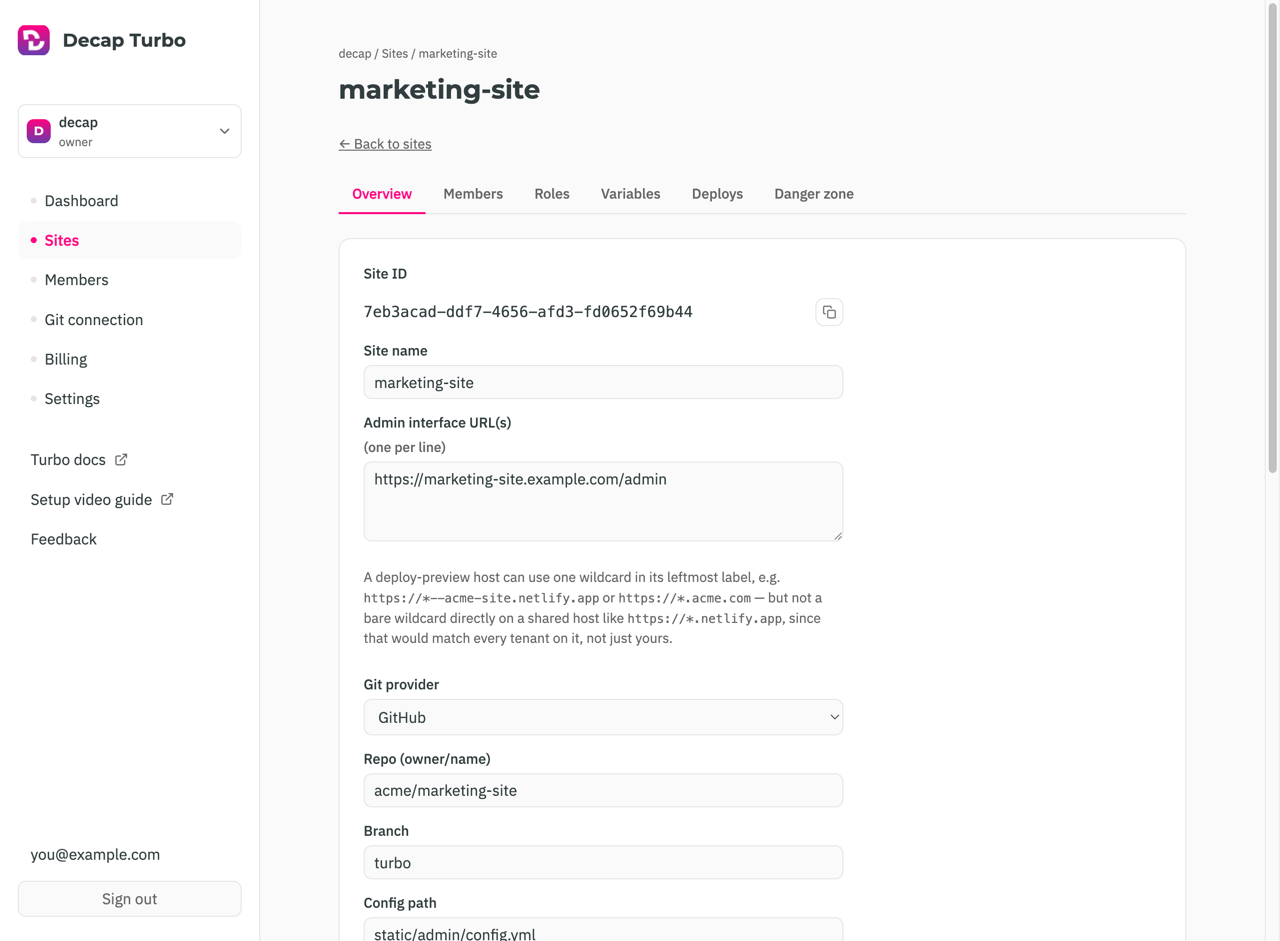
From Sites, create one and fill in:
| Field | |
|---|---|
| Site name | A label in Turbo. Not used in your CMS config. |
| Git provider | GitHub or GitLab. Must match a connection from the step above. |
| Repo | owner/name on GitHub; group/project on GitLab, subgroups allowed. |
| Branch | Defaults to main. |
| Config path | Repo-relative path to config.yml, default admin/config.yml. Turbo reads your collections from it for per-collection permissions, so it has to resolve. |
| Admin interface URL(s) | Where your CMS is served from, one per line. Checked during login, so fill it in. Deploy previews can use a wildcard — see admin URLs. |
Submitting gives you Full access on the site and opens its detail page, where the Overview tab shows the Site ID you need next.
Next: connect your config.yml.
Your profile
Your profile lists the organizations you belong to, the sites you can open, and account settings — password, usage-data collection, and account deletion. It is where you land if you belong to no organization, which is a valid state.
Someone invited only for site access never needs an organization page: their profile links straight to each site’s admin interface.