
Organizations, sites, and roles
Access control across an organization and its sites.
Organization roles
- Owners create and delete sites, invite and remove members, manage billing, and everything a member can do.
- Members can be given access to individual sites. Nothing else.
An organization always needs at least one owner: you can’t demote or remove the last one, or leave while you’re the only owner and other members remain.
Managing a site — its settings, members, roles, variables and Danger Zone — is owner-only. There is no separate site-admin role. Site membership governs content access in the CMS, nothing more.
Being an org member grants no site access on its own; an owner adds you to each site you need. That’s deliberate — someone can hold a seat without being able to edit every site you run.
Site roles
Each site member gets a role on that site:
- Full access — the built-in default. Every collection, no restrictions.
- Custom roles — named roles you define, each collection set to edit, view or none.
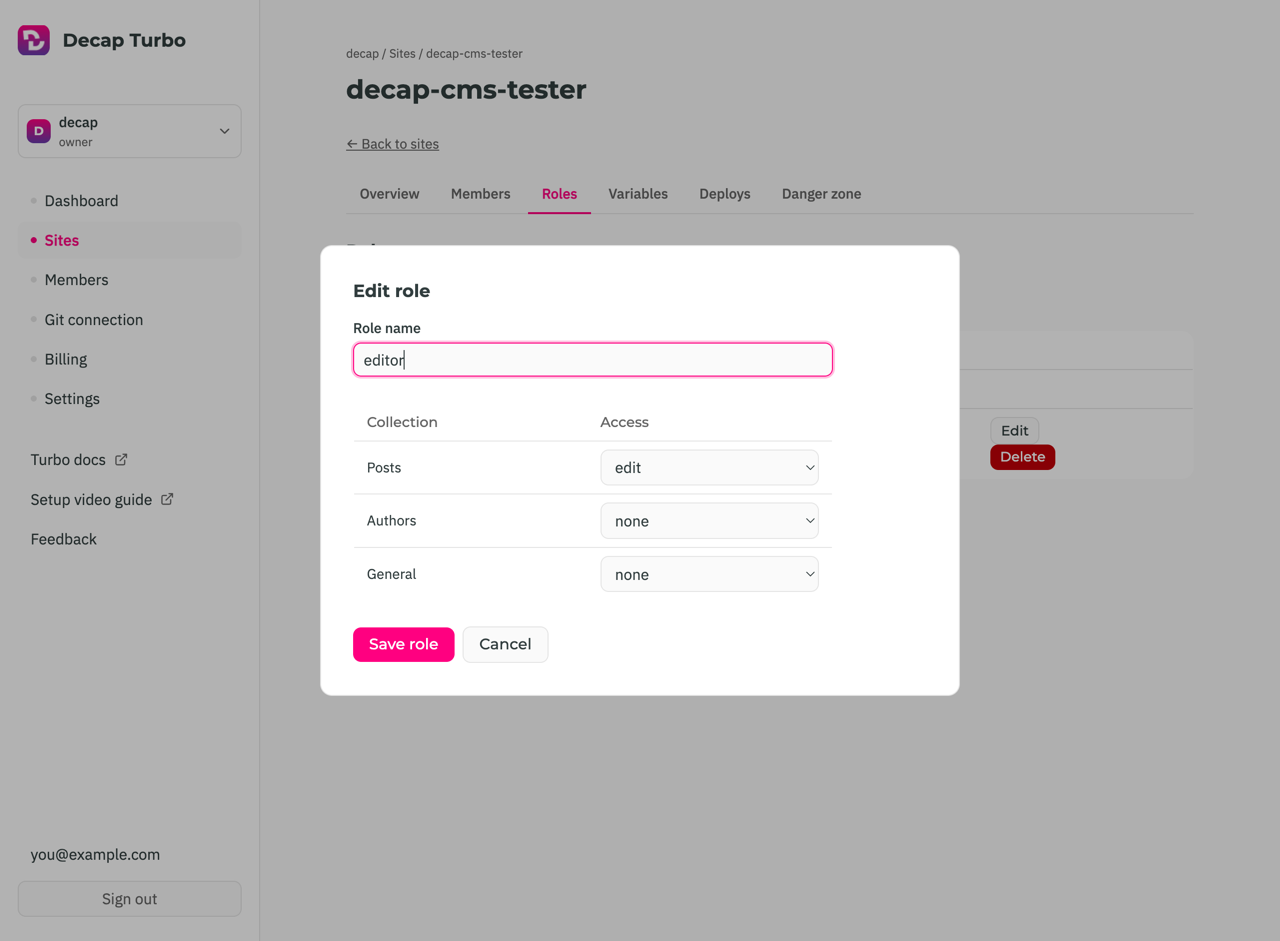
Restrictions are enforced server-side, not just hidden in the UI.
Creating and editing custom roles requires the advanced roles add-on (plans). Without it every member is on Full access. Deleting a custom role puts anyone holding it back on Full access.
Inviting people
From the organization’s Members page, invite by email and optionally grant site access with a role for each site in the same step. Invitations expire; resend or revoke them from the same page.
Invitees don’t need an existing account — accepting walks them through creating one. Accepting always adds them to the organization, even for a site-only invitation; if that’s all they got, their profile links straight to the CMS.
Someone who already has a Turbo account can be added directly, with no invitation email, from the same page or from a site’s Members tab.
Site variables
Pro and above. Each site has a key/value store on its Variables tab, owner-only — config and credentials scoped to that site, including the media library credentials.
Marking a variable secret encrypts it at rest and masks it in the UI; it can be replaced but never read back. Non-secret values are stored and displayed as plain text.
Site locking
A locked site is read-only for everyone until an owner unlocks it. It happens either automatically — a downgrade or cancelled subscription leaves the organization over its site limit, so one site stays active and the rest lock — or manually, to free a site slot without deleting anything.
Locked sites don’t count against the limit, so unlocking one needs a free slot. Upgrading unlocks automatically, oldest first, as far as the new plan reaches.
Transferring a site
An owner can move a site to another organization they belong to, from its Danger Zone. Members, variables and scoping move with it. Anyone who isn’t already a member of the destination organization loses access, since site access requires a seat there.
Usage data
Turbo records product-usage events — features used, pages visited — to guide development. Two independent opt-outs:
- Per account, on your profile, covering everything recorded under your user.
- Per organization, in organization settings, covering everyone in it. This is the lever for an organization acting on behalf of the editors it invites.
Neither affects the activity log, which is a record of the service you’re paying for rather than analytics.
Activity log
The organization’s Activity page lists who saved which entry, in which collection, on which site, and when — drawn from the same events the dashboard summarizes. Use it to answer “who changed this” without going to git log.
Leaving or deleting an organization
Both in organization settings, under Danger Zone.
- Leave removes your membership only. Blocked if you’re the only member, or the last owner with others remaining.
- Delete removes the organization and every site it owns, with their cached content, variables and memberships. The confirmation names the site count. It can’t be undone.
Belonging to no organization is a normal state — you land on your profile with a prompt to create one.